How to Add AI Product Recommendations to Your Shopify or WooCommerce Store
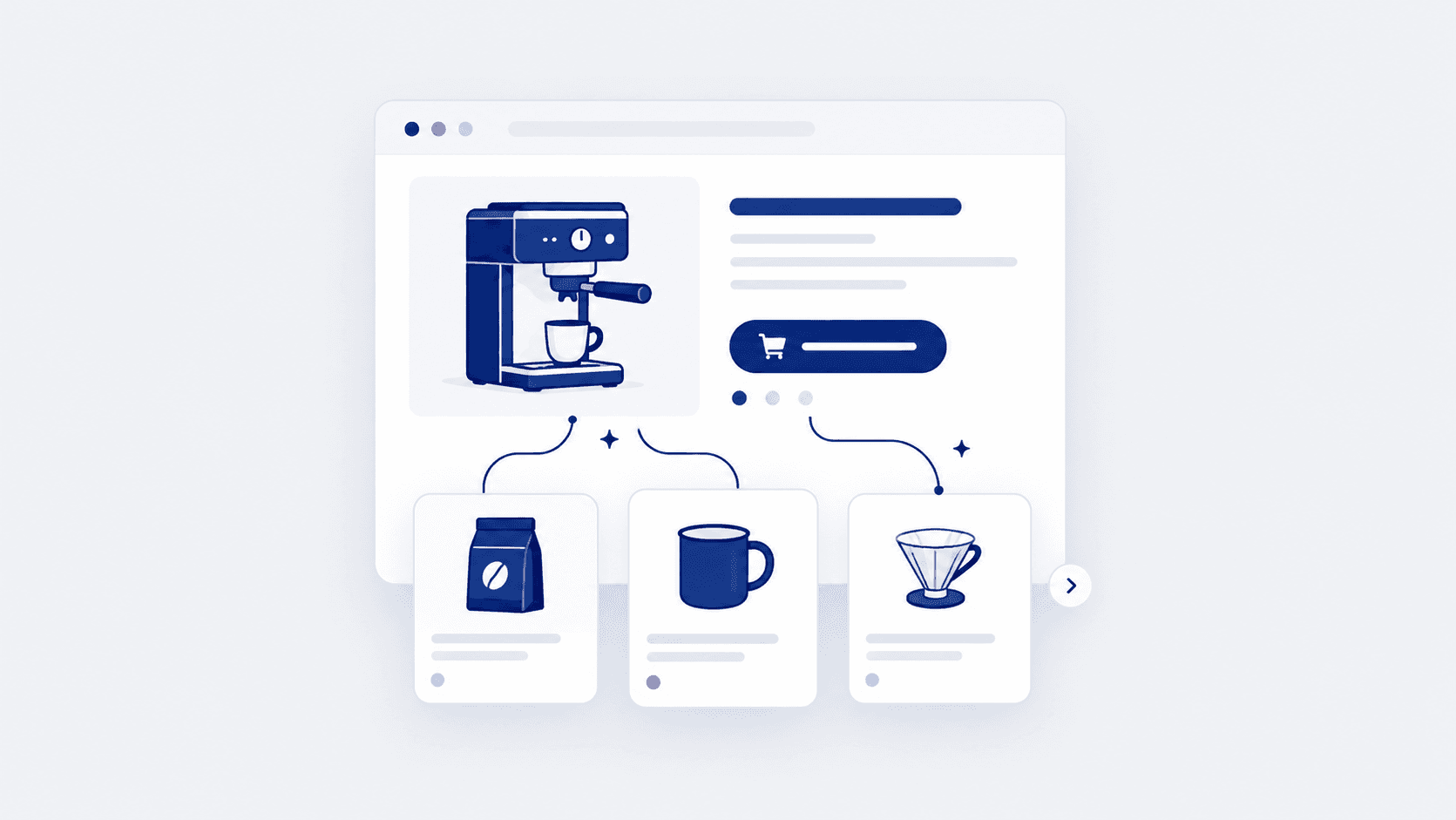
Scroll to the bottom of most product pages and you'll find a row called "You may also like." Look closely and it's often four products from the same collection, sometimes including one that's sold out, occasionally the very product you're looking at. It's there because the theme came with it, not because anyone set it up.
Adding proper AI product recommendations to a Shopify or WooCommerce store is mostly about doing that setup properly. The short version: start with the free tools your platform already has, move to a recommendation app once you have the traffic to measure it, and only consider a custom build when your catalog has rules no app can follow. Here's how to do each, step by step, on both platforms.
Before You Add Anything: Three Quick Checks
Ten minutes here can save you a monthly subscription.
Is your product data in shape? Recommendations, AI or not, work from your titles, categories, tags and attributes. If products sit in the wrong collections or have no tags, fix that first. Every option below gets better when you do.
How fast is your store on a phone? Recommendation apps add scripts to product and cart pages. On a store that's already slow, one more widget can lose more sales than it makes. Run a product page through our free website speed test and note the score, so you can compare after.
How much traffic do you get? AI personalization learns from visitor behavior. With a few dozen visitors a day, hand-picked suggestions will do as well as an algorithm, and they're free. We cover where the line sits in AI product recommendations: are they worth it?
Adding Product Recommendations on Shopify
Shopify gives you more than most store owners use, before you install anything.
Step 1: Use the Search & Discovery app
Search & Discovery is Shopify's own free app. It handles two kinds of recommendation:
Related products are generated automatically by Shopify, based on how products relate to each other and how customers shop them.
Complementary products are the "pair it with" items, and you choose them yourself.
To set them up, go to Apps, then Search & Discovery, then Product recommendations, and add recommendations for a product. You can pick up to 10 complementary products and up to 10 related products for each one. Start with your twenty best sellers. That covers most of your traffic and takes an afternoon.
A practical tip from Shopify's own guidance that holds up well: complementary products work best when they cost the same or less than the main product. Someone buying a $120 jacket will add $15 gloves far more readily than a second jacket.
Step 2: Show them in your theme
Most Online Store 2.0 themes have a complementary products block for the product page and a related products section below it. In the theme editor, open your product page template and add them if they aren't there yet. Two things to know: sold-out products won't show as complementary recommendations, and the blocks only appear once a product actually has recommendations set.
Step 3: Add an app only when you can measure it
Third-party recommendation apps add personalization based on each visitor's behavior, "frequently bought together" bundles, recommendations in emails, and A/B testing. They're worth it when you have the traffic and catalog for personalization to learn from. Most charge a monthly fee tied to your orders, traffic or revenue, so check the price at your current size and at twice it.
Adding Product Recommendations on WooCommerce
WooCommerce has three built-in types of linked product, and many stores only ever use the first.
Step 1: Check your related products
WooCommerce shows related products on the product page automatically, picked from products that share a category or tag. You can't choose them by hand, so their quality depends entirely on how well your categories and tags are set up. If the related products look random, the fix is usually your tagging, not a plugin.
Step 2: Set up upsells and cross-sells
These are the two you control, both in the product editor under Product data, then Linked Products:
Upsells show on the product page and suggest a better or bigger alternative: the 2-litre version, the model with the extra feature.
Cross-sells show on the cart page and suggest add-ons that go with what's already in the cart: the case, the refill, the spare part.
If your cart page is built with the newer Cart block, check that its cross-sells block is switched on, or your cross-sells won't appear at all. As on Shopify, start with your best sellers.
Step 3: Add a plugin when you've outgrown manual linking
Hand-picking stops scaling somewhere in the hundreds of products. At that point a recommendation plugin can generate suggestions from purchase data and place them in more spots, including category pages, the thank-you page and emails. WooCommerce sells its own Product Recommendations extension, and there are several others. Test any plugin on a staging copy first, then re-run your speed test, because plugins vary a lot in how much they slow a page down.
Where to Put Recommendations
Placement matters more than the algorithm. Here's where we'd put them, in order of priority:
Product page, near the add-to-cart button: two to four complementary items, clearly related to the product.
Cart page or cart drawer: low-priced add-ons that belong with what's in the cart.
Order confirmation and follow-up emails: refills, accessories and the logical next purchase.
Lower on the product page: related alternatives for shoppers still deciding.
Keep the checkout itself clean. Every extra choice there gives a buyer a reason to pause, and the order is worth more than any add-on.
How to Choose a Recommendation App or Plugin
Before you commit to a subscription, get answers to these:
What does it do to page speed? Test it on one product page before rolling it out.
What will it cost at twice your current size? Pricing tied to revenue grows with you, which is fair, but check the next tier.
Does it use your product attributes, or only purchase history? Attribute-based recommendations work for new products on day one.
Can you override it? You'll always want to pin, exclude or hide some products.
Does it have A/B testing? Without it you can't tell real extra sales from orders that would have happened anyway.
What happens if you leave? Removing some apps leaves code behind in your theme. Ask, and check.
When a Custom Recommendation Engine Makes Sense
Apps cover most stores. A custom build makes sense when your recommendations depend on data an app can't see or rules it can't follow: made-to-order or configurable products, trade pricing for different customer groups, compatibility rules ("only fits models from 2019 onwards"), or stock and margin data held in another system.
That's a proper software project, built around your catalog and your systems. It falls under our custom AI tools work, which starts from $4,999. For most stores we'd recommend getting the built-in options and an app working well first. You'll learn what your customers respond to, and that shapes a better custom build if you ever need one.
A 30-Day Rollout Plan
Here's a realistic way to get from nothing to measured results in a month:
Week 1: Tidy categories, tags and attributes for your top 20 products, and record your current speed score and average order value.
Week 2: Set up complementary products (Shopify) or upsells and cross-sells (WooCommerce) for those 20, and add the theme blocks.
Week 3: Check the blocks on a phone, fix anything odd (sold-out items, the same product recommended to itself, prices that don't fit), and extend to your next 30 products.
Week 4: Compare average order value and recommendation clicks with week 1. If the lift is clear and your traffic is healthy, that's the point to trial a paid app against what you've built.
The same clean product data also helps you get found by AI shopping tools, so none of this work is wasted. Our free Shopify store audit is a quick way to check the product data Google reads while you're at it.
Frequently Asked Questions
Does Shopify have built-in product recommendations? Yes. Shopify generates related products automatically, and its free Search & Discovery app lets you add up to 10 complementary and 10 related products for each product. Most Online Store 2.0 themes can display both.
How do I add related products in WooCommerce? WooCommerce shows related products automatically based on shared categories and tags. To choose suggestions yourself, set upsells and cross-sells in the product editor under Product data, then Linked Products.
What's the difference between upsells and cross-sells? An upsell suggests a better or bigger version of the product being viewed and shows on the product page. A cross-sell suggests an add-on that goes with what's in the cart and shows on the cart page.
Do recommendation apps slow down my store? They can, because they add scripts to your busiest pages. Test the app on one page, compare your speed score before and after, and remove apps you're not actively using.
Do I need AI for good product recommendations? Not at first. Hand-picked complementary products on your best sellers often do well on smaller stores. AI personalization earns its cost once you have a large catalog and enough traffic for it to learn from.
Keep reading
Website Speed and Revenue: What a Slow Site Really Costs You
Will AI Recommend My Products? How to Show Up in ChatGPT and Google AI Shopping
Want Recommendations Set Up Properly?
We set up product recommendations, clean catalog data and fast product pages through our Shopify development and WooCommerce development services. Our experienced team will tell you which option fits your store's size, and when you don't need an app at all.
More posts
All posts →
How Much Does a Website Cost in 2026? A Real Price Breakdown
What a website really costs in 2026: real starting prices for business sites, online stores and web apps, what moves a quote up or down, and the costs people forget.
AI Product Recommendations: Are They Actually Worth It?
When AI product recommendations lift sales and when they don't, what they cost, and how to get your products recommended by ChatGPT and Google's AI Mode too.
How AI Is Changing Ecommerce in 2026: What's Real, What's Hype
AI shopping assistants, agentic checkout, AI-written copy and support bots: what AI in ecommerce really changes in 2026, and a 90-day plan for your store.